On the Map

When I logged into my Picasa Web account today I got a pleasant surprise. They have finally activated the map function in Australia. I know it has been available in the US and other places for a while but not here. But today it just appeared, no announcement except a comment in the What’s new column.

This is something Picasa Web has been missing to compete with other photo sharing sites. Picasa Web is generous in the space it provides (1 gig for free) but has been a bit light on features. Slowly that is changing.

I have added the location to a few of my photos but have many to do. They will have to wait until I have a bit more time. So far it all seems to work well. It found a few locations in Australia I didn’t expect it to but some of the maps don’t look right. Of course this is not a part of Picasa but an issue with Google maps. But for the purpose of recording the general location it is fine.

So thanks Google, Picasa Web just keeps getting better.

Gone in a Flash

Call them flash memory, memory cards, whatever but with everyone who owns a digital camera and other devices using them they are now an important part of our lives. Often they hold the only record of important occasions. Too often they are also a source of exasperation and disappointment. So what can be done to make them more reliable?

In some ways I feel a little under-qualified to write this as I have never lost a file off one of these cards. So I don’t really know what it feels like to have try and recover that important photo.

I have one card that has survived in one of my digital cameras for two and half years. It gets used too. It is the camera I drop into my backpack when I’m going out for the day. It is also used regularly to record activity at a worksite. Here is what I do, it’s not rocket science just a little common-sense.

The card stays in the camera, at least as much as possible. I use the USB cable to download files from the camera, not a card reader. Similarly I don’t take it to a photo booth and print from it. Either I print at home or I put the photos I want on a cd and take that to the shop. I bought the largest card available at the time as using a high capacity card will reduce the chance of filling it up and needing to change it.

If it comes out of the camera it goes in its storage box. How often have you seen people pull one of these cards out of their pocket, bag etc. and then wonder why they can’t read from it? These are fragile pieces of kit and should be treated accordingly.

If it does come out of the camera it doesn’t happen in a dusty, damp or dirty environment. Dust or moisture on the contacts or worse in the camera will prevent proper use of the card. Cleaning is difficult and if its in the camera, expensive. Keep the cover closed!

All my cards are formatted regularly. While new cards will sometimes work as soon as they are put in the camera I always format in the camera before using them. Rather than just deleting photos when they are copied off I often do a full format. I have heard advice to the contrary and even been told it causes the camera problems. This is old news, it appears early digital cameras would forget their number sequence when formatted and so old photos could be overwritten (who keeps the name cameras give the images anyway?). This doesn’t happen with newer cameras.

Get those files off there. As soon as I can I transfer the images to the computer. However unless I am going to use the camera immediately I don’t delete the files from the card until I have backed them up at least in one additional place.

So that’s it, a few simple ideas that work for me. Treat your card with respect and it will reward you with long life. Do you have any other ways of keeping the card contents safe? Please share them in the comments.

Scanning Film

I find when scanning film it pays to follow a procedure. Failure to do this often equals failure to achieve a successful scan (or archived copy). I mentioned earlier the steps I had to go through to get the scanner working so this time I will concentrate on the actual scanning process. I follow the same regime whether I am working with slides or negatives. It can be broken down into three steps – scanning, produce an archive, produce the required useful image.

Scanning

I use Vuescan to control the scanner. It has the advantage of being cross platform but I principally run it under Linux.

After selecting the shot to be scanned I select the appropriate settings in Vuescan. I have set the defaults to be close to what I need so the main settings to be made are negative or slide and type of film. Vuescan comes with presets for common film so this is easy if I can identify the film. With negatives it is printed on the film strip but with mounted slides it is not possible to tell.

I sometimes change the presets particularly if the film is faded or otherwise degraded, some of the film I am working with is more than 20 years old. Next a preview is made. Although the quality is a little less than the final scan it is a good indication of what I will get. At this point I may try some changes to the settings. Eg, I may preview different white balance settings. The area to be scanned is selected at this point too. There are options to keep the existing aspect ratio if that is important. I don’t crop too heavily at this stage especially if any perspective adjustments are going to be made later.

When I am happy with the preview I select scan. When the scanner has finished it will ask for a file name. Over time I have developed a naming procedure that works for me, it is YYYY_mmddtitle-nnnn.ext. This is year followed by an underscore then month and day, a title (or subject) follows then the image number. The image number is made up of my film catalogue number and the frame number on the film. (I use the same system with digital images but there is no film number so I just use a shot number.) I save the output of the scanner as a tiff.

Produce an Archive

As the output of the scanner has been saved I have an archive but I may do some additional work with a photo editing package. I use the Gimp for most editing. This includes fixing any perspective problem (ie. straightening sloping horizons or leaning buildings) and cleaning up any dust or scratches. A graphic tablet is an ideal tool for cleaning up images. It allows excellent control. I find it a must for detailed editing.

When I am satisfied with the results I save it, still as a tiff. I usually replace the scanned image but I sometimes rename it, usually by appending an “a”, if I consider I have altered it to the stage it is a new image, although this is rare.

Most importantly I save and backup this original scanned image.

The Final (or Useful) Image

This can be done at any time but usually I have scanned an image with the intention of using it, often as a post on my photo blog, “cewatticey”. So at this stage I make any changes to the image I think it needs and resize it and save as a jpeg if it is for use online. I will save in a different format if needed for some other use. I keep the name, just changing the extension unless the site has restrictions on file names, this applies to my photo blog. In this case I rename it to a generic name often using the title. If I have changed a colour photo to monochrome for example I will append a “m” to the filename to make it easy to identify in future.

The copy is saved with the original, if I want to post it somewhere else it saves reprocessing it. If I want to create a version for a different purpose it is created from the original.

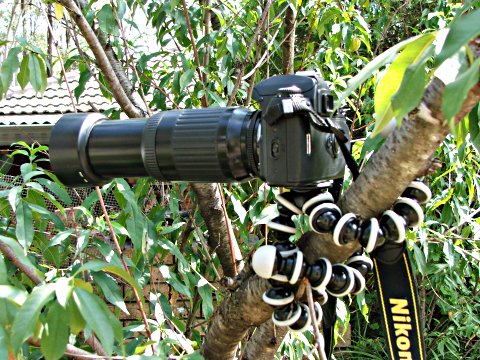
Photo Editing Tools, Take 2

Recently I have been experimenting with Paint.Net. Paint.net is a free photo editing package which is a step above the basic editors that are available. It has layers and many of the options of Photoshop. It was developed as an university project and continues to be supported. If you already have .net on your computer it is a download of less than 4 meg, with .net it is 46meg. Paint.Net is only available for Windows. See getpaint.net for more info and downloads.

I found Paint.net to be a reasonable editor but not in the same class as Photoshop or the Gimp. While it handle the basic edits well some of the screens were not as user friendly as I was expecting. The auto fixes achieved a similar result as Photoshop Elements which suggests the internal routines are well written.

I have been using Photoshop Elements 4 too. I found it simple to use and effective for most uses. The photo organiser has not been used extensively but I found it more powerful than Google’s free Picasa.

So what was my final decision. While Photoshop is the industry standard there is no doubt for most people one of the free options will provide most if not all of the tools required to edit photos and create works of art. There are of course commercial options. Photoshop Elements is a useful package that uses the Photoshop engine with a simplified interface and options. It includes the most popular options but without the more powerful tools. Another popular editor is Paint Shop Pro. I have used an older version and found it very useful and it deservedly has many fans.

But none of the commercial packages have a great advantage over the free options except in one area. None of the free software mentioned above can handle camera raw. For that you need the software supplied with the camera, a specialised program such as RawStudio or you will need to spend money. Photoshop, Photoshop Elements and Paint Shop Pro handle a varying range of Camera Raw. If this is important to you confirm your camera is covered before you put your money down.

If you intend to work professionally there is no substitute for Photoshop but most users will never use 90% of Photoshop’s power. I use the Gimp most of my editing. Give the free software a try, after all what can you lose it won’t cost you anything.

Photo Editing Tools

I often wonder what software people are using to prepare the photos they post in their blogs. I have seen mention of a couple and so I thought I would list some of my experiences with software.

Initially I used an LE version of Photoshop that came with my scanner. I was never able to find out what made it LE but I suspect it was an earlier version sold to the scanner company at a very good price. Surprisingly there was no option to update to a full version.

I have tried various demo copies but never found anything that was a big enough improvement to part me from my money. OK I am a bit of a miser but when I spend money I want something for it.

In search for something better I have checked out a couple of free tools and must say I was impressed. They are Open Source alternatives to the commercial editors. Many people may dismiss them for this reason but many open source applications are true alternatives developed in line with user needs not corporate agendas.

First was the GIMP. An Open Source alternative to Photoshop. Despite it having most of the options available in Photoshop it was criticised for its quirky interface. This is not a problem if you haven’t used anything else but coming from Photoshop it was quite a change.

This has never bothered me but it bothered some people so much they developed GimpShop. It is a development of the Gimp with Photoshop like interface. This is one of the advantages of open source, anyone with the knowledge can modify, improve and adapt the original program. Both the Gimp and GimpShop are available for Mac and Linux as well as Windows.

The only complaint I have at the moment with the Gimp is that it does not handle Camera RAW. This is not a major problem as the RAW can be converted to TIFF by software supplied with the camera. It can then be edited with the GIMP. All digital cameras that have a Camera RAW option provide a similar facility. Unfortunately these tools often are only available for Windows and often Mac, never for Linux. Linux has inbuilt support for many digital cameras and the list is growing all the time. Check out Rawstudio to see if your digital camera’s RAW format is supported in Linux.

My advice is check them both out after all they are free so what can you lose.

In Defence of the Focusing Ring

What ever made digital camera designers think that a combination of buttons is a suitable substitute for the tried and true focusing ring on the lens?

One of my requirements when I chose my digital camera was manual control including focusing. I haven’t used full manual exposure but often use Aperture Priority and similar settings. I would like to use manual focusing too but I still haven’t mastered it. Usually I use auto focus which works fine in most situations but sometimes, such as in macro mode it does not work. Either the focus is on the wrong part of the picture or, and more commonly, it can’t focus at all. Manual control is essential or the picture is missed.

Trying to hold one button while adjusting others and concentrate on getting the right focus is just too much. Without a tripod it is impossible. With my film slr I just turn the lens ring and it is done. So disappointing and in every other way I love my Fuji S5500.

Does the above mean I am just trying to convince myself I need to invest in a digital slr? Mmmm… that’s not going to happen soon but time to dream.

Scanning Film under Linux

When I installed Linux I had a few issues to sort out. One of those issues was that I needed to get the film scanner working. When I finally got around to it, it became a case of 2 steps forward then 1 step back but the final result was positive.

I have a Canon FS2710 film scanner that connects to the computer via SCSI. For those who aren’t familiar with SCSI, it was the standard interface for hardware that required large amounts of data to be moved. It is only recently that ide hard drives have caught up with the speed of SCSI drives. While Macs had a standard SCSI port pcs usually needed a card. I had the original card so that wasn’t a problem.

Setting up the scanner was actually easier under Linux than Windows XP. While Windows 98 SE supported SCSI that support has been removed from XP. So I needed to find and install SCSI drivers before installing drivers for the scanners. Fortunately the Canon website had the details.

Linux supports SCSI and the scanimage -L command reported the scanner. However SANE, the scanner drivers, didn’t find it. I found it was necessary to edit the canon.conf file, I simply uncommented the line with the SCSI device number and changed the number to the correct one, 4 in my case as the card reader had used the lower numbers. SANE then recognised the scanner and I was away.

Remember the step back? Well I scanned a slide and it was fine but when I scanned a negative the result was very poor, washed out and noisy. I tried 2 scanning interfaces xsane and xscanimage. The results were the same.

Negatives are difficult to scan well. When you look at a negative you see the colour of the film and the colours in the picture are the reverse of the real colours. The scanner must “see” past the film colour and each film brand is a different colour. The scanner or the software must then reverse the colours in the picture. This is one reason I mainly shoot slides these days but I have a lot of older negatives. About 80% of pictures I have been posting on my photo blog are from negatives so the ability to scan negatives well is important to me.

I had heard of Vuescan, a commercial program, that had good reports. They provide a trial version so I downloaded that and tried it. The results are very good. It is available for Windows and Macs as well as Linux and supports hundreds of scanners and digital cameras. The trial version puts dollar sign watermarks all over the scanned image but you can see what the results will be. The control of the scan is greater than any other program I have used.

One other test I tried was to see how it scanned slides, some reports I have seen suggest Vuescan outperforms the Canon software. Vuescan also supports the transfer of files from many digital cameras. Those same reports suggest it is superior to the software supplied with many digital cameras to process their raw files. I can’t test this as my FujiFilm digital camera is not supported under Linux at this stage.

My choice was to purchase Vuescan or continue the hassle of rebooting in Windows to scan negatives. After a few days of rebooting I registered my trial copy of Vuescan and am still happy with it.

Attack of the Gorillapod

One of the things that sets a serious photographer apart from a happy snapper is the use of a tripod. Supporting the camera allows a greater range of photographic opportunities whether it is shooting in low light or the option to use different aperture / shutter speed combinations. Sure modern cameras allow fine photos to be taken hand held but supporting the camera in some way give you so many more options.

However a tripod is not always available. They tend to be large and awkward items particularly if you are on foot or public transport. There are smaller and lighter variants but few are sturdy enough to be truly useful. There are also places where tripods can’t be used or can’t be set up in such a way to allow the desired shot.

A new option for holding the camera steady is the Gorillapod from Joby. Its only similarity to the traditional tripod is that it has 3 legs. These legs are a series of articulated joints that can be twisted in any direction. With a little practice it is possible to twist these legs around almost anything. It takes little effort but they hold on tightly.

I tested it out on a steel fence and a tree branch. Using the upright parts of the fence for support gave greater stability but it was steady even with my 300 mm lens.

Testing on the FenceAt this point it is worth mentioning that there are 3 sizes, one for point & shoot cameras, a larger one for slrs and the slr zoom for cameras with large zoom lens or video cameras. I have a SLR Zoom which can support up to 3 kgs. It certainly had no trouble holding my camera.

The SLR Zoom also comes with an adapter that will allow the use of a tripod head if you have a special purpose head you would like to use. I mounted the camera directly to the Gorillapod.

I had no trouble making it secure in the tree except after I got it in place I realised I couldn’t get my eye to the viewfinder, the branch was in the way! But it proved that it could be used in just about any location and not just with horizontal supports.

Testing in the TreeOh and you can use it as a regular tripod by just standing it on the legs!

A recommended addition to your camera kit. Prices seem to range from $A39 to $A89 in Sydney.

For something a little different there is even a page on Flickr devoted to “gorillapod love”.